
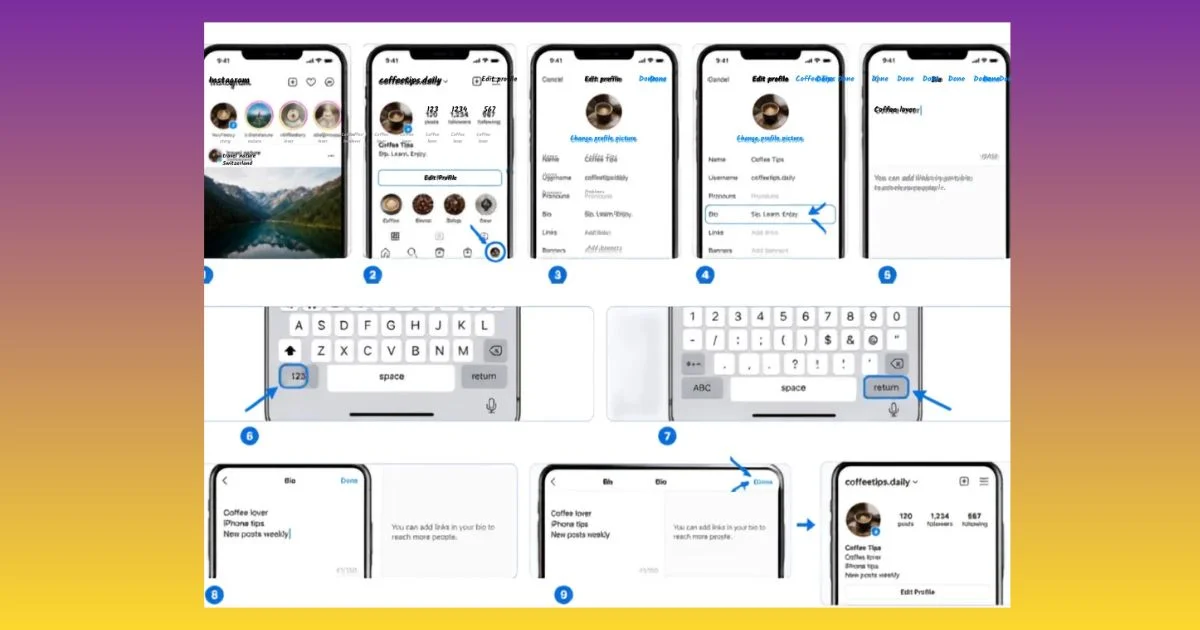
Want to make your Instagram bio look clean instead of appearing as one crowded block of text? To add bio on Instagram in different lines, open your profile, tap Edit Profile, select Bio, and use the Return or Enter key to place each part of your bio on a new line. If Instagram removes the line breaks, write your bio in your phone’s Notes app, format each section on a separate line, then copy and paste it into Instagram.
Using an Instagram bio in different lines makes your profile easier to scan and helps important information stand out. You can place your name or profession on the first line, your services or interests on the next, and a call to action on the final line.
For example:
📸 Lifestyle Photographer
✈️ Travel & Adventure
✨ Sharing everyday moments
👇 Explore my latest work
In this guide, you’ll learn how to add bio on Instagram in different lines on both iPhone and Android, how to fix disappearing line breaks, and how to use simple Instagram bio formatting and spacing to create a professional-looking profile.
How to Add Bio on Instagram in Different Lines Easy
Learning how to make Instagram bio multiple lines is mainly about controlling where each piece of information appears. Rather than placing several ideas together, give each idea its own line.
For example:
Before:
Fitness Coach | Helping beginners get stronger | Online workouts | DM for coaching
After:
💪 Fitness Coach
🏋️ Helping beginners get stronger
📲 Online workouts
💬 DM for coaching
The second version has better visual separation and allows visitors to understand your profile more quickly.
Why Multiple Lines Work Better
An organized bio can:
- Make important information easier to find
- Improve readability
- Separate your profession from your interests
- Highlight a call to action
- Give your profile a cleaner appearance
- Make your personality more noticeable
Remember that the goal of Instagram bio formatting is not to fill every available space. It is to make the available space useful.
How to Add Line Breaks in Instagram Bio

If you are searching for how to add line breaks in Instagram bio, there are several methods you can try.
Method 1: Use Instagram Directly
Open your profile, select Edit Profile, and tap the bio field. Type your first line and use your keyboard’s Return or Enter key to move to the next line.
Continue this process until your bio is complete.
However, some keyboards or Instagram versions may behave differently. If the line breaks disappear after saving, try the next method.
Method 2: Use the Notes App
The Notes app is one of the simplest ways to prepare your bio.
Create Your Bio in Notes
Open Notes on your phone and type each part of your bio on a separate line.
For example:
🌿 Simple Living
🏡 Home & Lifestyle
✨ Daily Inspiration
📩 New posts below
Then select the complete text, copy it, return to Instagram, and paste it into the Bio field.
Check the preview before saving.
Method 3: Use Another Text Editor
You can also create your bio in a basic text editor that supports normal line breaks. This can be useful if the Instagram app does not retain the formatting when you type directly.
Avoid relying on unusual symbols or excessive invisible characters. Simple formatting is generally easier to maintain.
How to Start a New Line in Instagram Bio
Knowing how to start a new line in Instagram bio helps you separate different types of information.
A useful structure is:
Line 1: Who you are
Line 2: What you do
Line 3: What you offer
Line 4: Call to action
For example:
👩💻 Content Writer
✍️ SEO & Blog Writing
📈 Helping brands grow online
💌 Let’s work together
This structure works well for creators, freelancers, small businesses, influencers, and personal accounts.
How to Create Line Breaks in Instagram Bio Without Extra Tools

You do not necessarily need a special Instagram bio generator to create clean formatting.
The simplest approach is to write the bio normally and use the Return or Enter button where you want a new line.
If Instagram removes the breaks:
- Write the complete bio in Notes.
- Format every section on its own line.
- Copy the entire bio.
- Open Instagram.
- Paste the formatted text.
- Save and check your profile.
This method can also make editing easier because you have a separate copy of your bio.
Instagram Bio Spacing
Instagram bio spacing can make a big difference in how your profile looks. However, adding too many blank spaces or empty lines can make your bio look unnecessarily stretched.
A good rule is to keep spacing intentional.
For example:
🎨 Digital Artist
🖌️ Portraits & Illustrations
📍 Los Angeles
🔗 See my latest work
This is cleaner than adding several blank lines between every sentence.
Avoid Excessive Special Characters
Some people use invisible characters to force additional spacing. These techniques may work in certain situations, but they can also create inconsistent formatting.
For a reliable bio, prioritize:
- Normal line breaks
- Short sentences
- Simple emojis
- Clear wording
- One strong call to action
How to Write Instagram Bio on Multiple Lines
If you want to know how to write Instagram bio on multiple lines, start by deciding what information deserves space.
A strong bio usually does not need to explain everything about you. Instead, focus on the information that matters most to your visitors.
A Simple Four-Line Formula
Line 1: Identity
Tell visitors who you are.
Line 2: Value
Explain what you provide.
Line 3: Personality
Add an interest, specialty, or personal touch.
Line 4: Action
Tell people what to do next.
For example:
📷 Lifestyle Photographer
✨ Capturing everyday moments
☕ Coffee + travel enthusiast
👇 View my latest work
This approach creates an easy-to-read Instagram bio in different lines without making the profile look cluttered.
How to Add a New Line to Instagram Bio on iPhone
If you use an iPhone, the process is straightforward.
iPhone Steps
- Open the Instagram app.
- Go to your profile.
- Tap Edit Profile.
- Tap your bio.
- Place the cursor where you want the next line.
- Use the Return key on the iPhone keyboard.
- Enter the next section.
- Save your changes.
If your formatting does not appear correctly, create the bio in the Notes app first and paste it into Instagram.
Apple’s official support resources can also help if you are having general keyboard or text-entry problems: Apple Support
How to Add a New Line to Instagram Bio on Android
Android users can also create a multi-line bio using the Return or Enter key.
Android Steps
- Open Instagram.
- Go to your profile.
- Tap Edit Profile.
- Select Bio.
- Type the first section.
- Tap Enter or Return to begin a new line.
- Continue formatting your bio.
- Save the changes.
Keyboard layouts can vary between Android phones. If the Enter key does not produce the desired result, use a Notes or text-editing app and paste the completed bio into Instagram.
Instagram Bio Formatting Tips

Once you understand line breaks, you can improve your overall Instagram bio formatting.
Keep Each Line Short
Long lines can make the bio feel crowded. Try to communicate one idea at a time.
Use Emojis Carefully
Emojis can act as visual markers.
For example:
📍 Chicago
🎥 Video Creator
🎵 Music & Lifestyle
You do not need an emoji on every line. A few relevant symbols are usually enough.
Highlight Your Main Benefit
If your account represents a business or professional service, make your value clear.
Instead of:
I love social media and meeting new people.
Try:
📱 Social Media Strategist
📈 Helping small brands grow
The second example immediately communicates the purpose of the account.
Common Instagram Bio Line Break Problems
Sometimes users follow the correct steps but still do not get the expected formatting.
Here are some common causes:
| Problem | Possible Solution |
| Line breaks disappear | Write the bio in Notes and paste it |
| Enter key does not work | Try another keyboard or text editor |
| Bio looks crowded | Shorten individual lines |
| Too much empty space | Remove unnecessary blank lines |
| Formatting changes after saving | Use simple line breaks and fewer special characters |
| Bio is difficult to scan | Give each idea its own line |
Check Your Bio After Saving
Never assume the formatting looks correct simply because it looked good in the editor. Visit your public profile after saving and check the final appearance.
This is especially important when using copied text, emojis, or unusual characters.
Best Examples of Instagram Bio in Different Lines
Here are a few examples you can adapt.
For a Personal Account
✨ Dream Big
☕ Coffee Lover
✈️ Exploring New Places
📸 Sharing My Journey
For a Creator
🎥 Content Creator
💡 Tips, Ideas & Inspiration
🎬 New videos every week
👇 Watch the latest
For a Small Business
🧁 Homemade Desserts
🎂 Cakes for Every Occasion
📍 Serving Austin
📩 DM to place an order
For a Freelancer
✍️ SEO Content Writer
🔎 Blogs That Get Found
📈 Helping brands grow
💌 Available for projects
These examples show how to create line breaks in Instagram bio while keeping each line useful.
Mistakes to Avoid
Creating multiple lines is helpful, but too much formatting can work against you.
Avoid:
- Adding several unnecessary blank lines
- Using excessive emojis
- Writing extremely long sentences
- Filling the bio with random symbols
- Using complicated invisible-character tricks
- Making every line look identical
- Hiding your main call to action
Your bio should look natural on both your own phone and other people’s devices.
FAQs
How to separate Instagram bio lines?
Use the Return or Enter key to place each part of your Instagram bio on a separate line.
What is a 3-line bio for Instagram?
A 3-line Instagram bio divides your profile information into three short sections, such as who you are, what you do, and a call to action.
How do I add a new line in bio?
Place your cursor where you want the break and press the Return or Enter key to start a new line.
How to write an Instagram bio in different styles?
Use line breaks, emojis, symbols, spacing, and short phrases to create a bio style that matches your personality or brand.
How to add a new line to Instagram bio?
Type the first section, press Return or Enter, and then type the next section. Repeat until your bio is formatted the way you want.
Can I use the same line-break method on iPhone and Android?
Generally, yes. Both devices support line breaks, although keyboard behavior can vary. If direct editing does not work, use a Notes or text-editing app.
Why does my Instagram bio lose line breaks?
Instagram or your keyboard may not preserve the formatting exactly as entered. Copying a properly formatted bio from a simple text editor can help.
Should I leave blank lines in my Instagram bio?
Usually, no. A small amount of spacing can improve readability, but too many blank lines can waste valuable bio space.
Final Thoughts
Learning how to add bio on Instagram in different lines is a small change that can make your profile look much cleaner and more professional. Instead of putting your information into one crowded block, use simple line breaks to separate your identity, interests, services, and call to action.
The easiest approach is to edit the bio directly with the Enter or Return key. If Instagram does not preserve the formatting, create the text in Notes, copy it, and paste it into your profile.
Good Instagram bio spacing does not require complicated tricks. Keep your lines short, use emojis thoughtfully, avoid unnecessary blank spaces, and make sure your most important information is easy to notice. With a little Instagram bio formatting, you can create a profile that looks organized while giving visitors a clear reason to follow or contact you.

I create engaging Instagram captions, bios, quotes, and lifestyle content to help you express every mood, moment, and story.